WEEK OF 2026/04/21 - Introducing: The Camera Editor
8 minute read - Published on: 2026/04/21
Table of Contents
Hey funkBlog fans,
It’s Hundrec, Production Manager for the Funkin’ Crew. Good to see you again!
Since the release of Weekend 1 almost two years ago, we’ve used the modern Chart Editor to create charts. It was an exciting upgrade from the legacy Chart Editor that was put together in just a few days.
However, the new Chart Editor came with its fair share of issues. The character selector wouldn’t let you select characters, event values would randomly get reset, and the editor would crash after doing just about anything. Fortunately, the Chart Editor is now much more stable after plenty of bug fixes (shoutout to our GitHub contributors!).
But there was one thing that couldn’t be fixed… Camera Events.
All of the events in a chart are displayed in a single column to the right of the note grid, which makes overlapping events very difficult to select. It’s also incredibly time-consuming to start a playtest over and over just to see what a Zoom Camera event looks like during the song. There are too many fundamental design issues with the Chart Editor to provide a smooth camera editing workflow, especially for event-heavy songs like SPAGHETTI by LE SSERAFIM (468 events total).
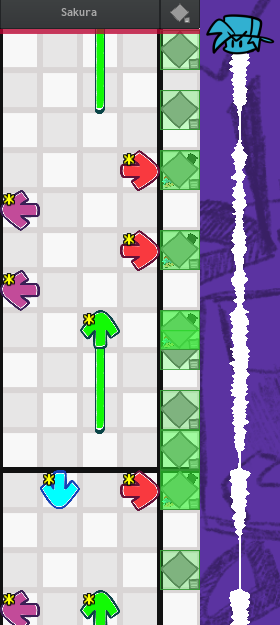
So with our director PhantomArcade demanding ever more impressive camera work, our programmer and visual designer fabs pitched and directed the development of a fancy new Camera Editor to make charting camera events as easy as possible.
Stick around to the end to learn how you can try it out yourself!
Now, let’s take a look at what makes the Camera Editor so easy (and even fun) to use!
At a glance
Here’s the Camera Editor after loading in a chart:
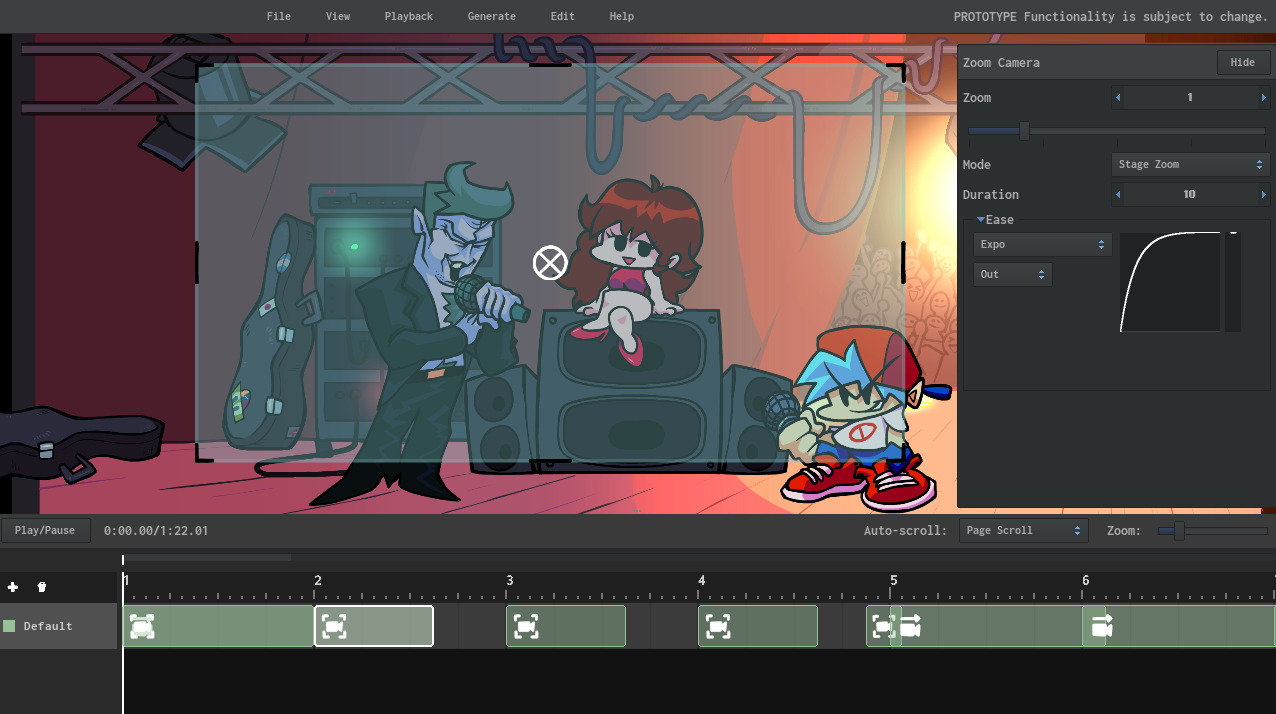
You can see the Stage Preview in the center, the Properties Panel to the right, and the Timeline at the bottom. There’s also a pretty Virtual Camera that shows where the camera would be during the song. Each of these components comes with lots of cool details!
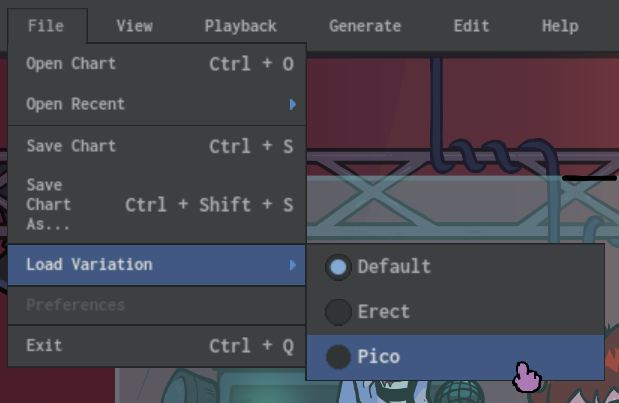
Different variations of the loaded .fnfc chart can be accessed under File > Load Variation:
The Stage Preview
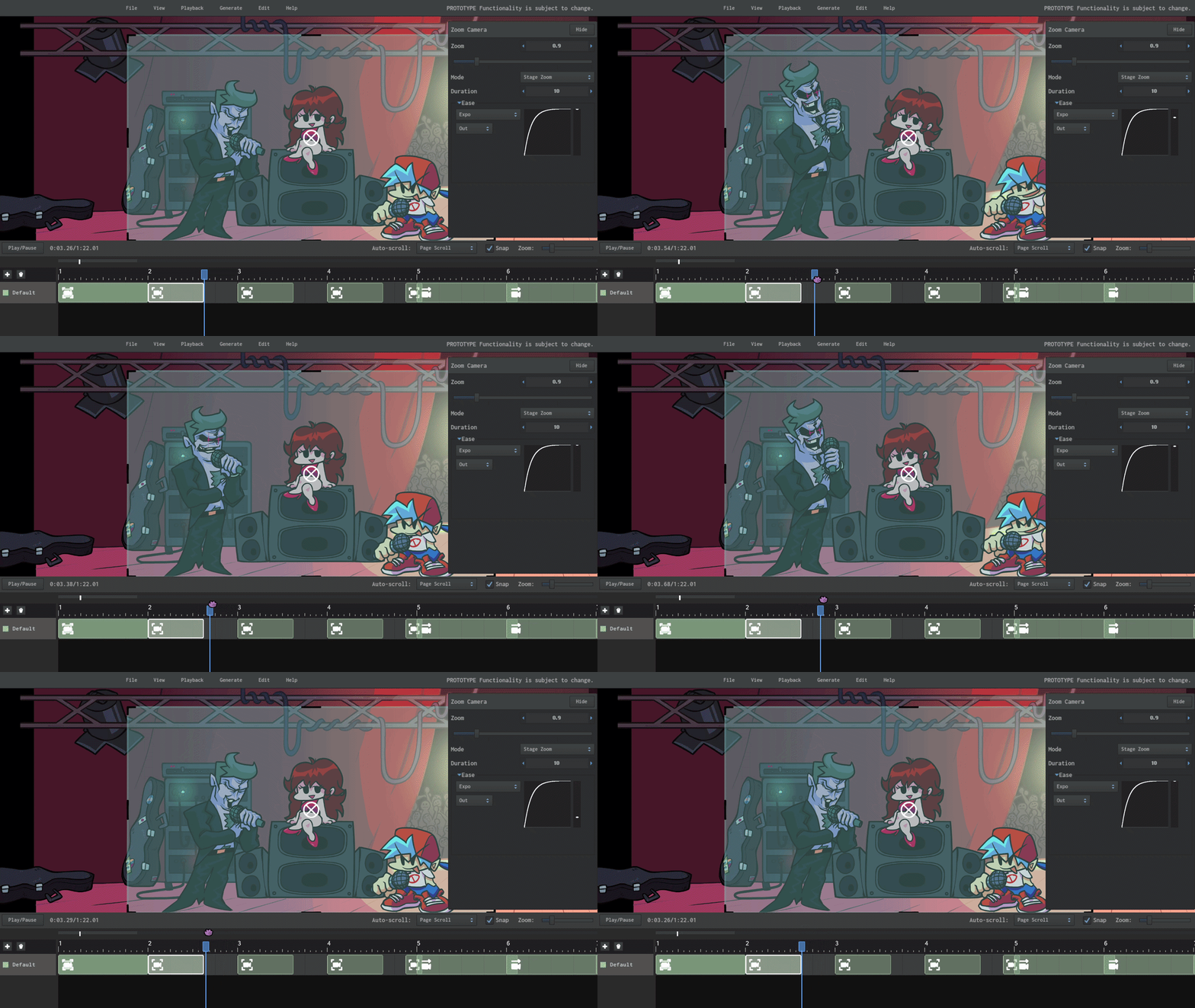
The Stage Preview shows the loaded chart’s characters singing notes and animations based on your position in the song. The characters sing the notes from the hardest difficulty of the current variation (Hard/Nightmare).
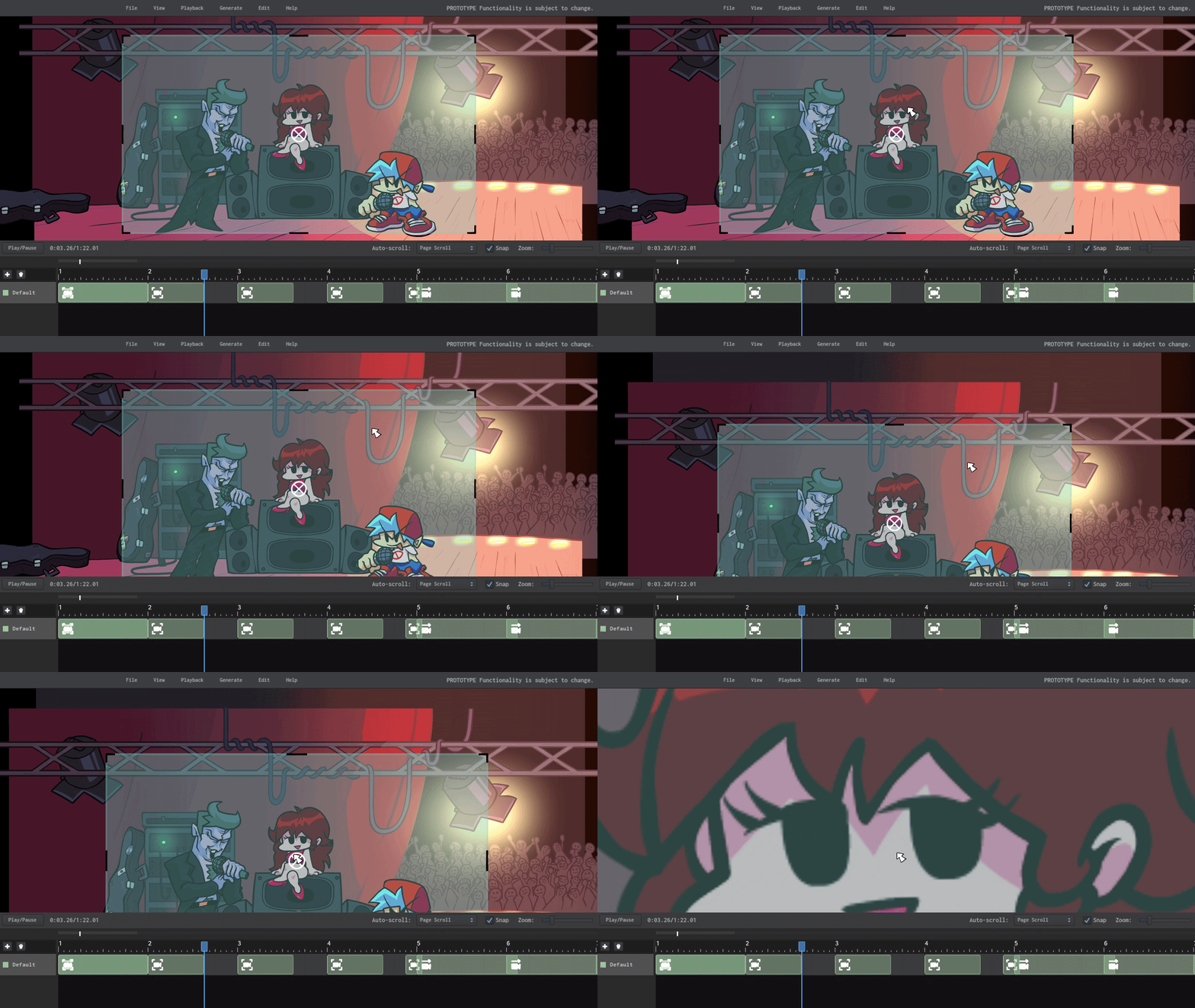
The cool part is that the characters can sing backwards too! Scrubbing back and forth on the Timeline seamlessly updates the Stage Preview:
You can pan around the Stage Preview using the middle mouse button, and zoom in and out with the scroll wheel:
The Timeline
Let’s bring up the Timeline using the draggable splitter:
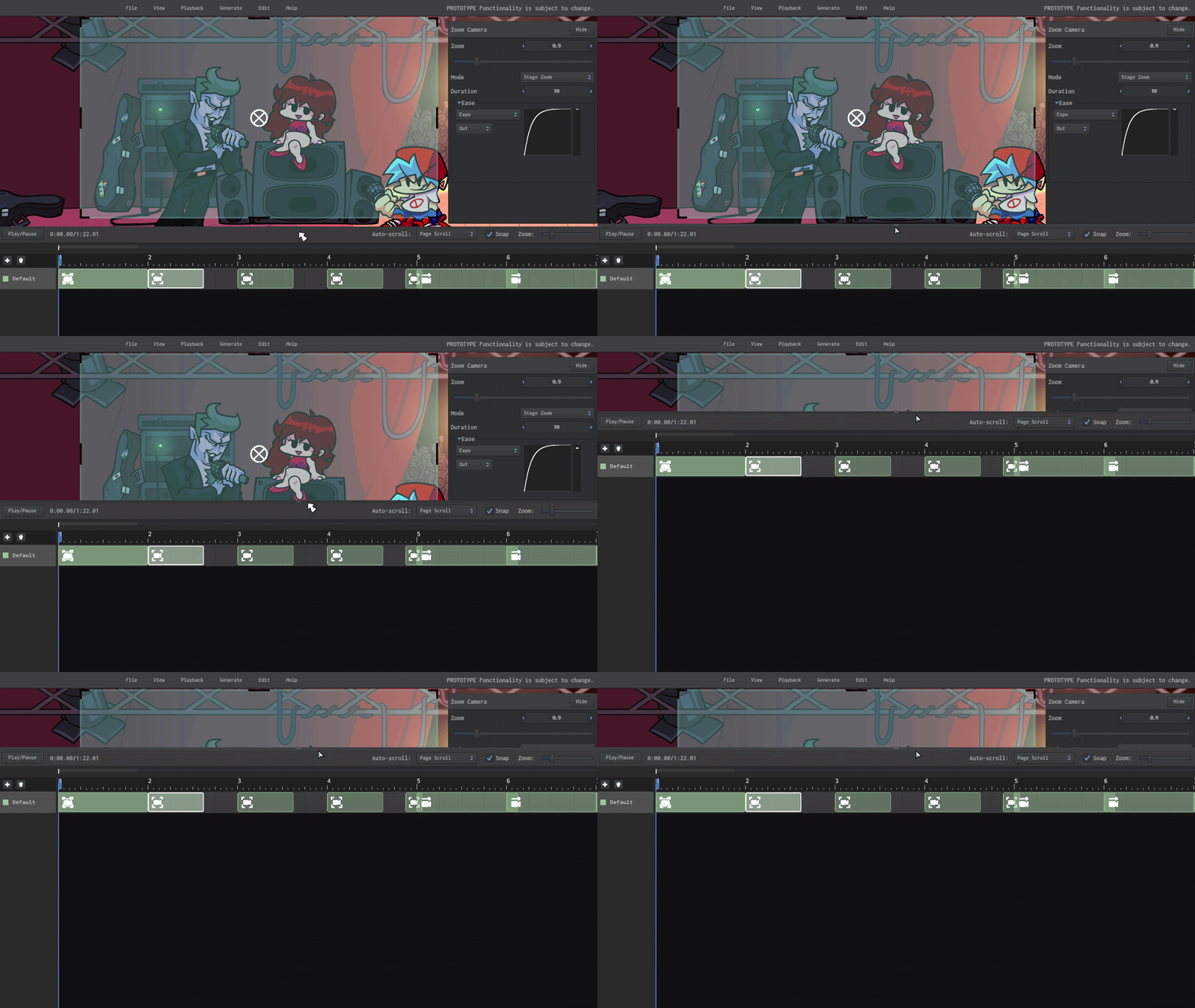
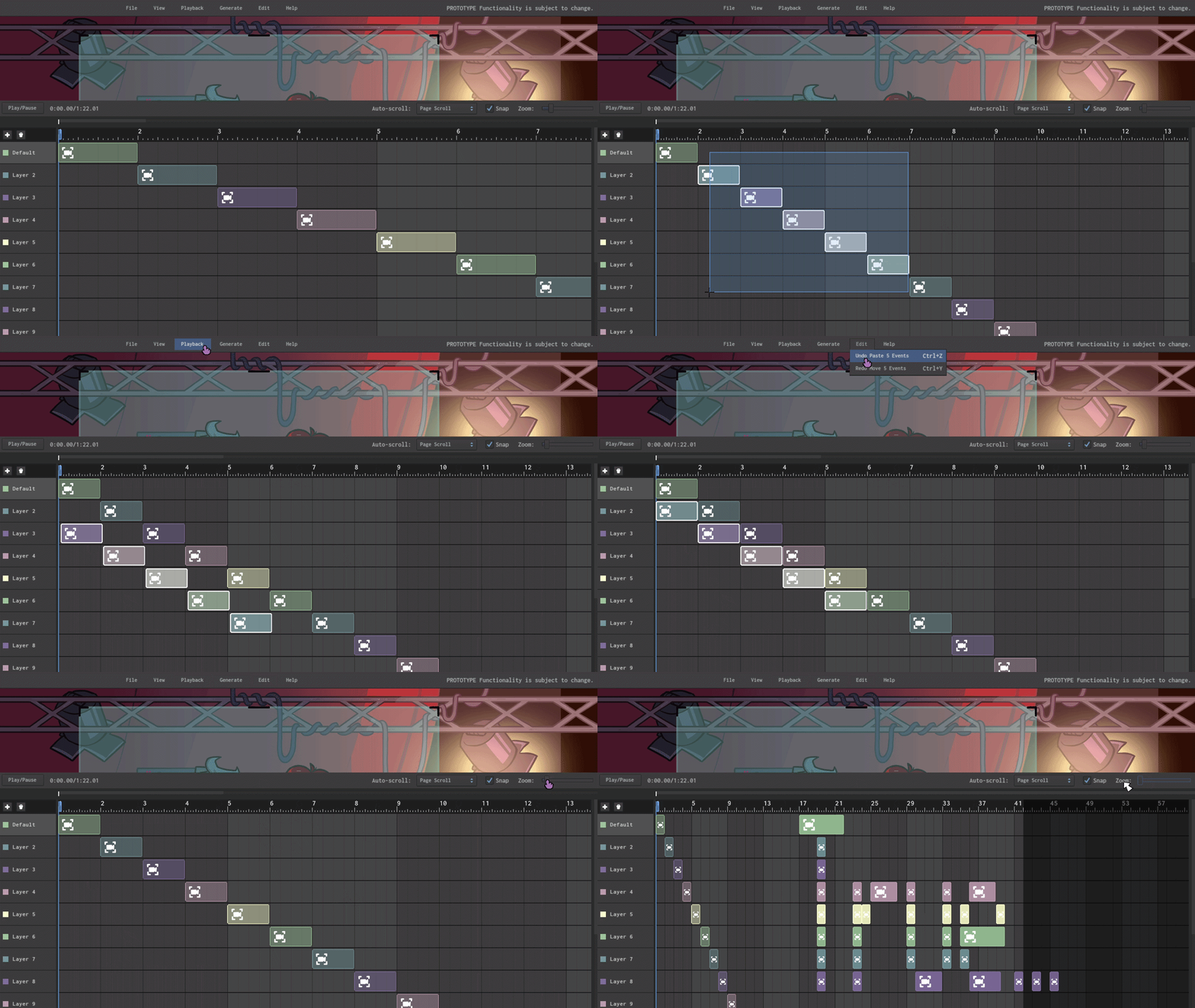
The Timeline is where you view and place your camera events. Currently supported events include Focus Camera and Zoom Camera. Right click on the Timeline to add an event!
Above the events are markers indicating the Section (measure) number you’d see in the Chart Editor, along with smaller beat and step markers. You can scrub to different parts of the song by clicking and dragging on this darker section, or by dragging the blue playhead.
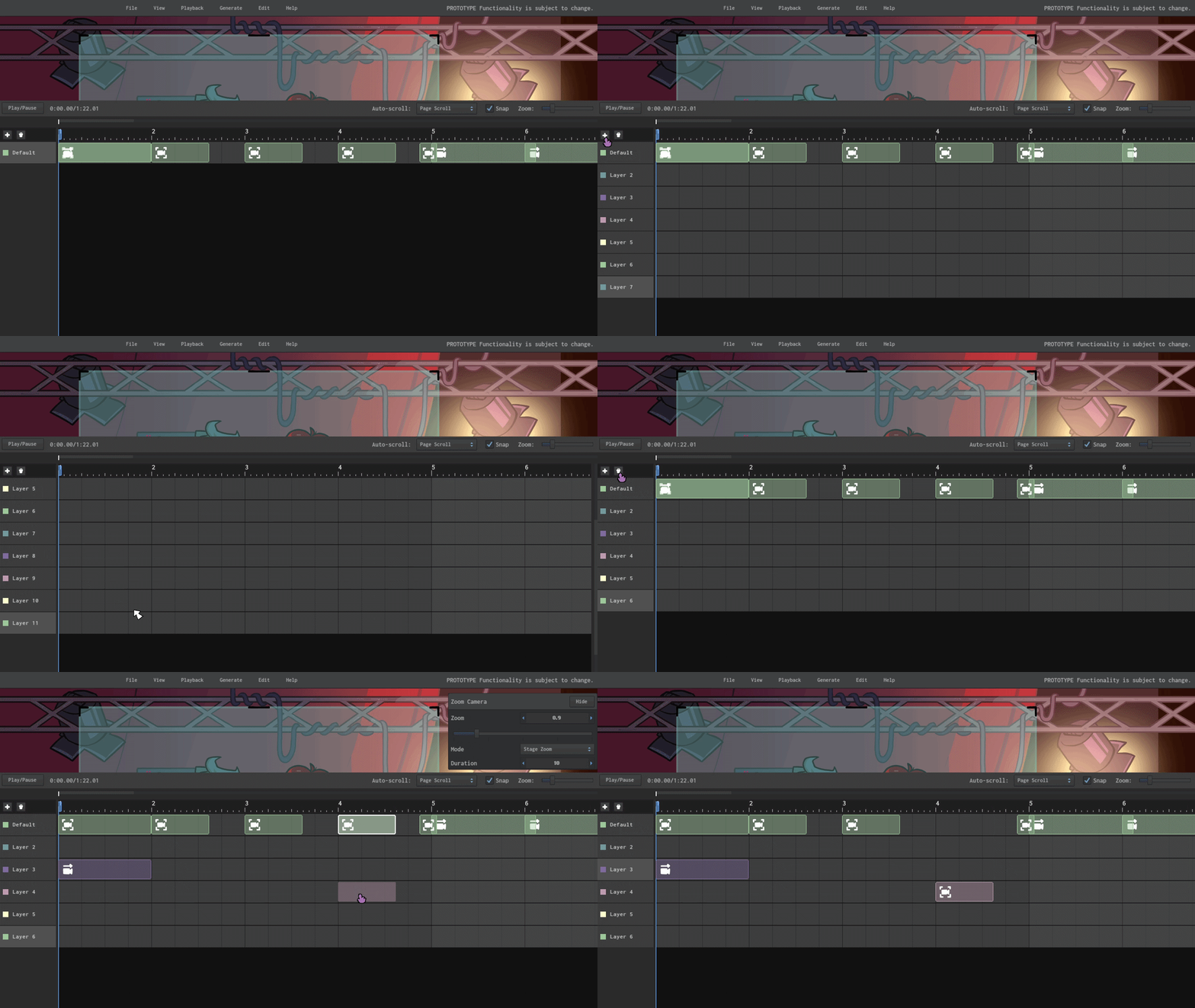
Excitingly, this Timeline has layers! When you load a chart for the first time, any existing camera events display on the Default layer. You can click the plus button to add as many new layers as you please. If the Timeline overflows with layers, you can hold Ctrl and scroll to navigate through them, or even middle click to pan around. Convenient!
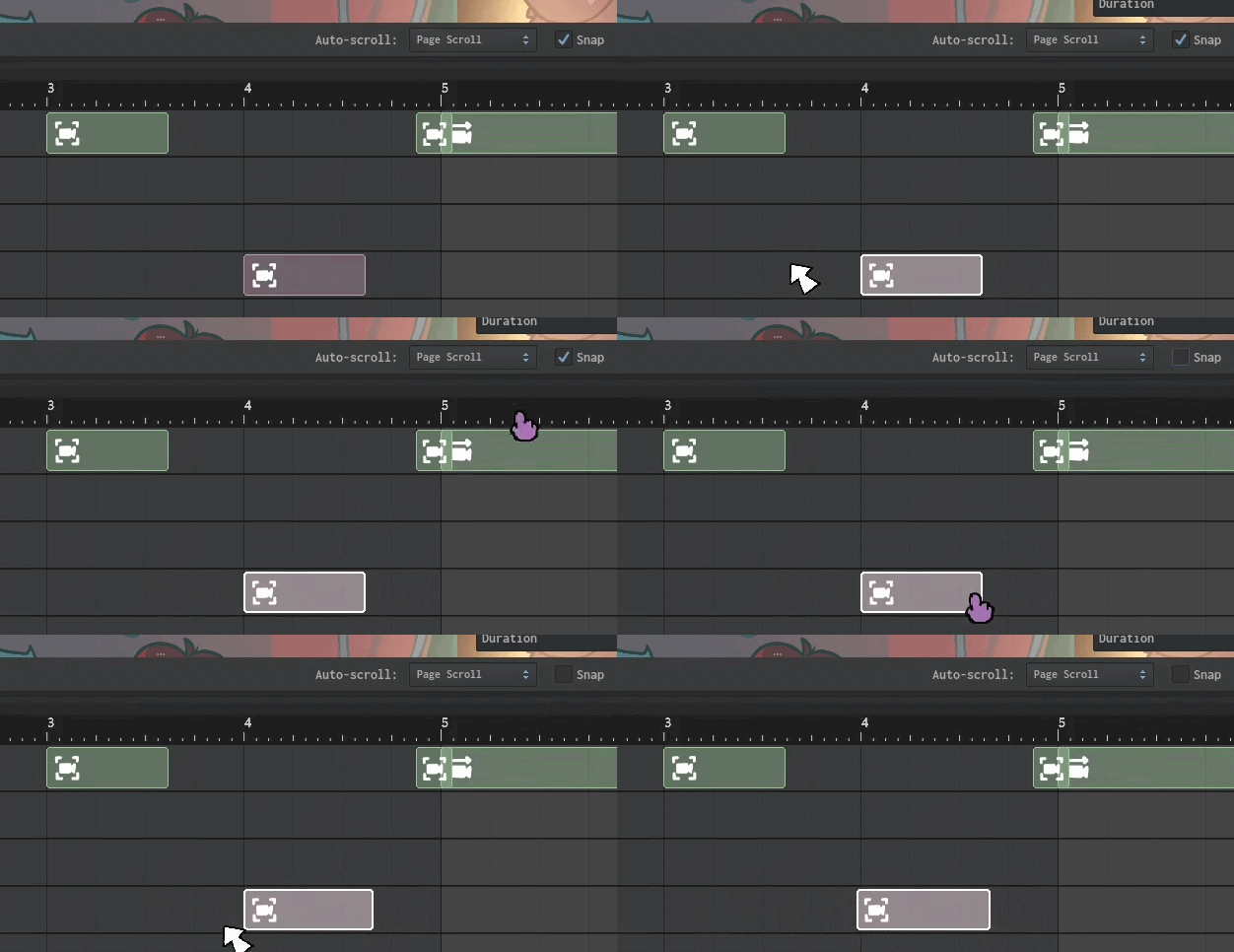
You can also change the duration of events directly on the Timeline by dragging the ends of the event box! When the Snap setting is enabled, the event’s duration locks on to the nearest step (the tiny markers).
And that’s just the start of it!
The Timeline also features:
-
A Zoom level slider in the top right corner. You can either drag that slider, or hold Shift and scroll to view more or less of the Timeline at once.
-
The standard suite of utilities including the multi-selection box and copy and paste, and an undo/redo history. Multi-select works by clicking and dragging anywhere on the Timeline area, and the other keyboard shortcuts use the key combos you’d expect from an editor (Ctrl + Z, Y, C, V).
Check out all of these features in action:
The Properties Panel
Playing around with events on the Timeline is fun and all, but we need a way to edit those events.
Clicking on any individual event reveals the Properties Panel on the right, which displays all the same properties you would see in the Chart Editor Events window.
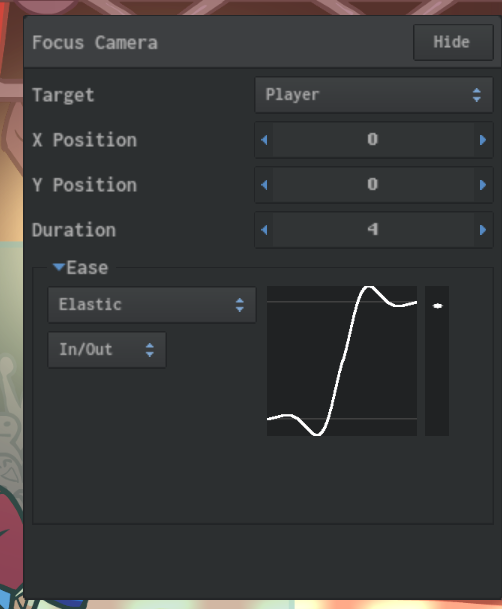
Like the Timeline, the Properties Panel comes with some quality of life features:
- Using the scroll wheel over numeric values easily adjusts Zoom, Duration, and Position.
- The Zoom value includes a handy slider with a range of common Zoom values.
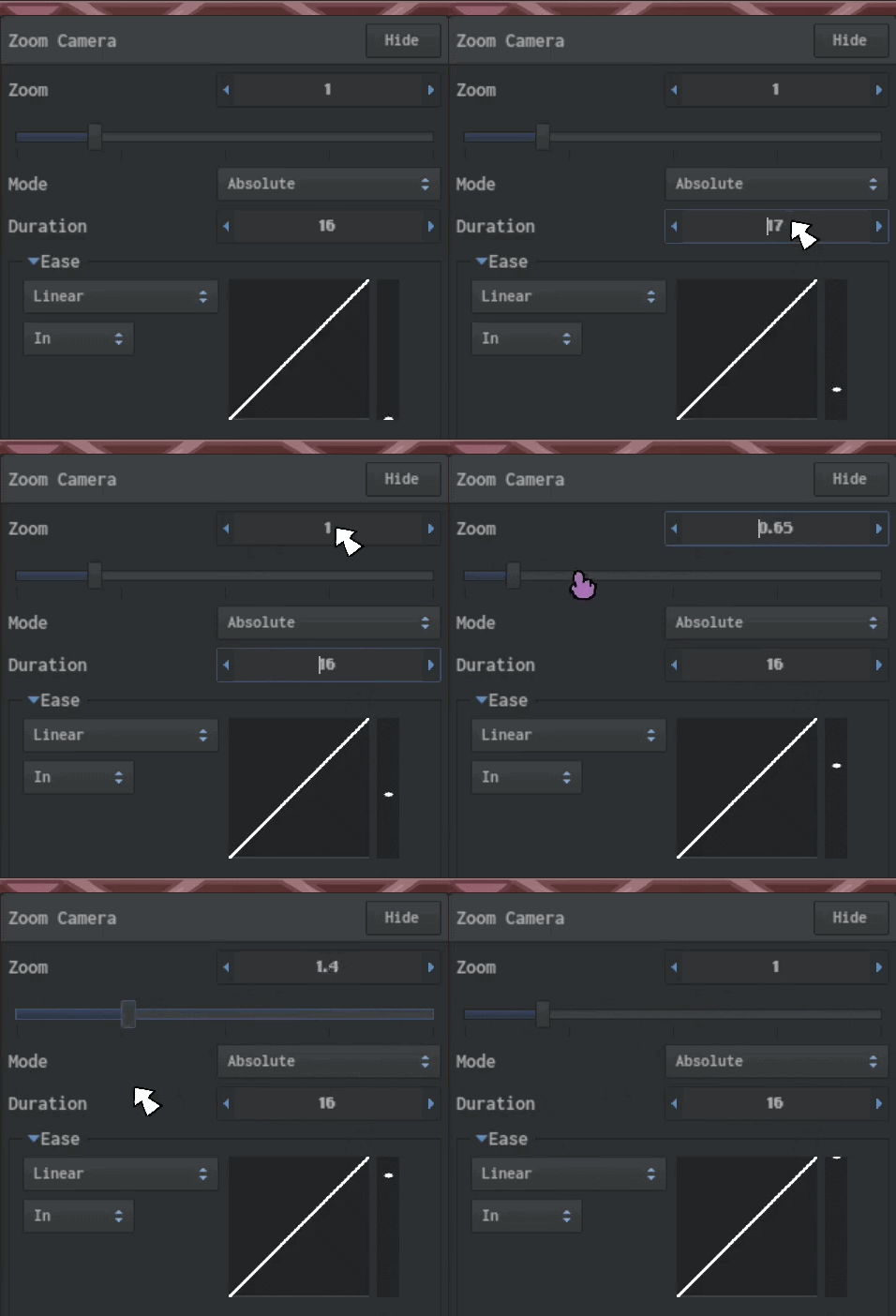
But what makes these adjustment methods extra cool is how they interact with…
The Virtual Camera
The Virtual Camera (or VCam, for short) is the region inside the Stage Preview that is visible during gameplay.
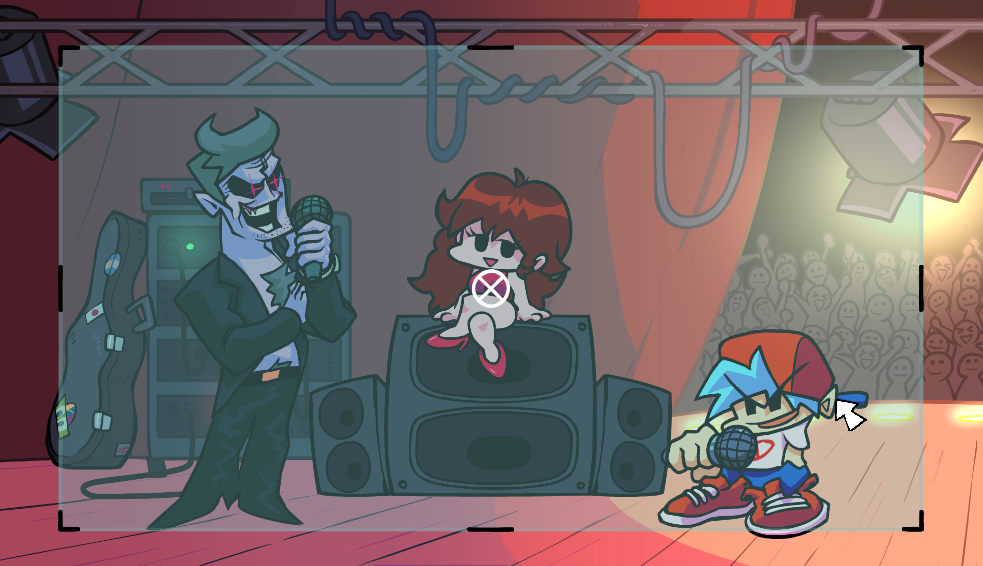
Being able to see where the camera is positioned is already a huge upgrade from the Chart Editor, but we added some extra touches to make it even more useful!
During playback, the VCam moves and zooms according to the events in the Timeline. But if you edit the values of an event, the VCam updates based on your edits in real time!
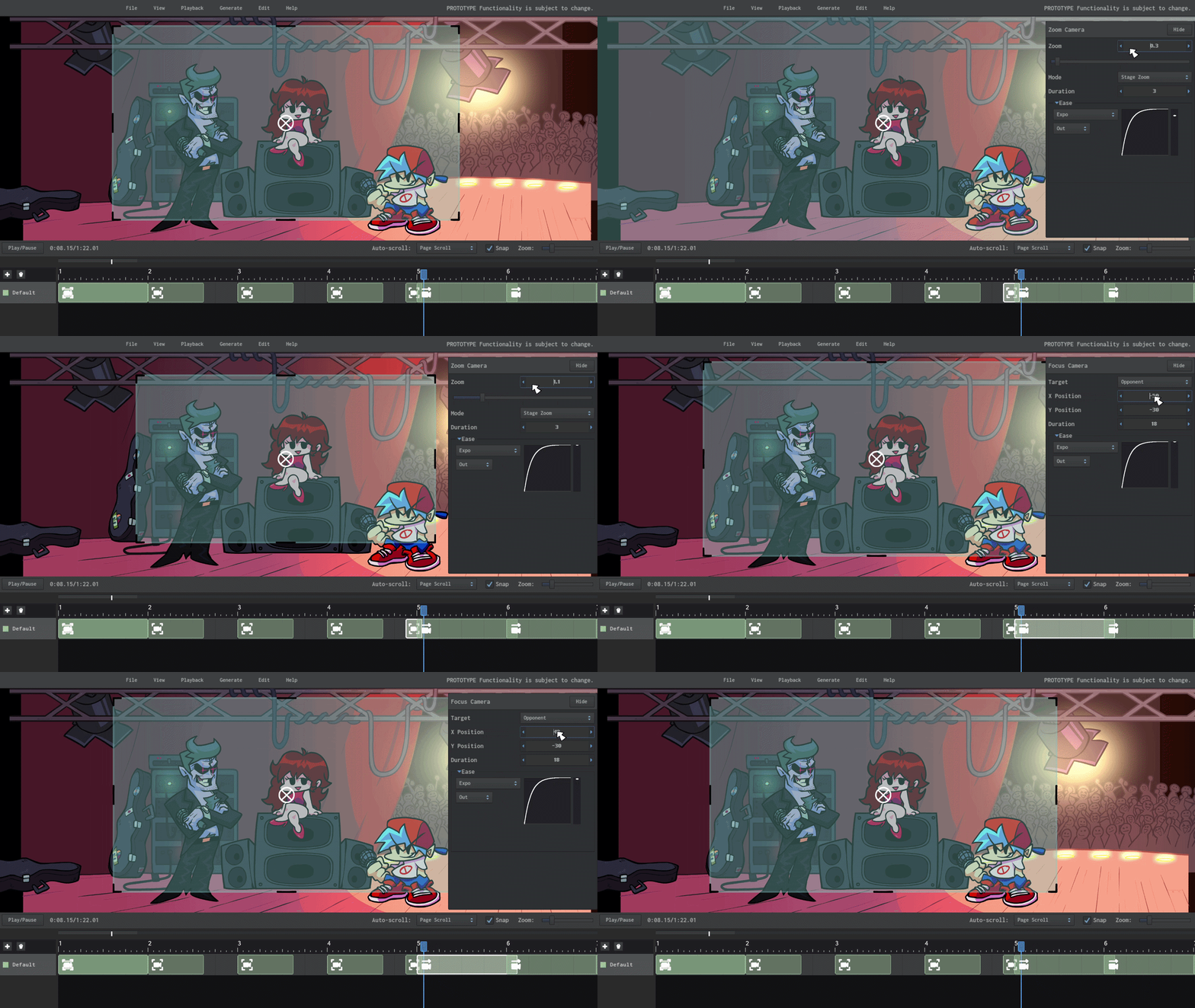
That’s magical, and it doesn’t end there.
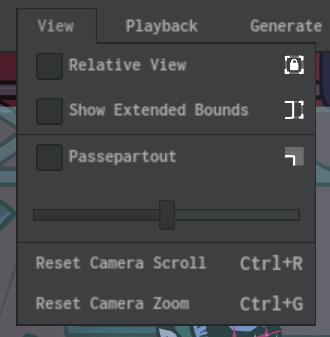
- Relative View locks the VCam in place so that only the stage moves.
- Show Extended Bounds expands the VCam to a 20:9 aspect ratio to show what’s visible on ultrawide Mobile displays.
- Passepartout darkens the area outside the VCam so you can focus on what’s visible within its bounds. Kade affectionately calls this one “French word”.
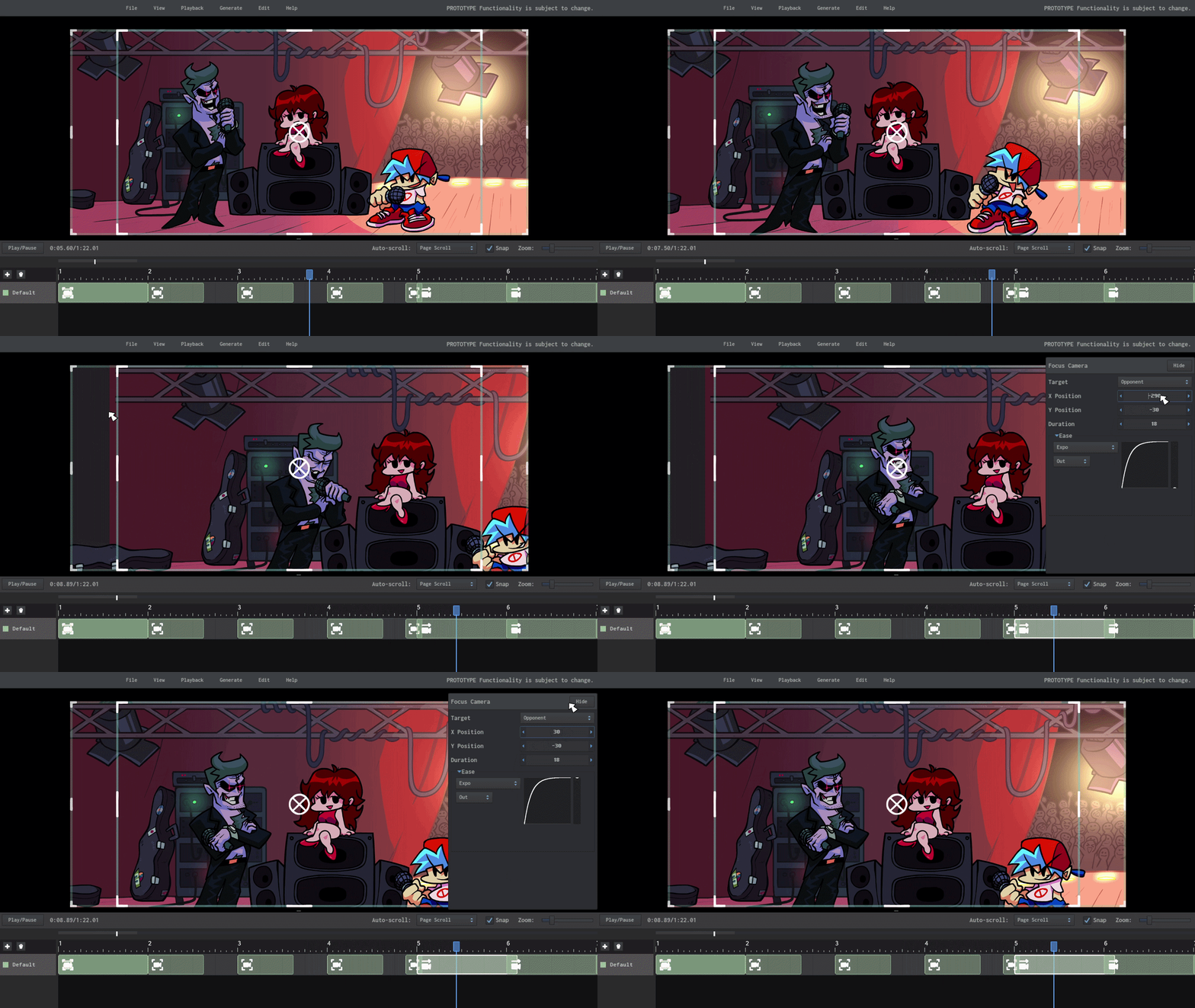
Protip: Turning on Relative View and Passepartout on maximum darkness makes the Stage Preview look exactly as it does during gameplay.
Put them all together and you get the ultimate Camera Editing experience!
What does this mean for Funkin’?
Now that we’ve made the Camera Editor, production for all future levels will benefit from this enhanced workflow. Charting camera events will actually be fun, and fabs will never have to painstakingly place 468 events in the Chart Editor again. Woohoo!
How can I try this for myself?
The Camera Editor will only be officially released with the next major update, but you can try it right now in a series of test builds we will be releasing.
Here is the first test build for Windows: [WINDOWS] Camera Editor Preview #1
And for the Mac users: [MACOS] Camera Editor Preview #1
We invite you to download this build, play around with the editor, and give us your feedback! You can contribute to development by reporting bugs and leaving suggestions on our GitHub issues page.
As we continue to work on the next major update, we will improve the Camera Editor with more features, bugfixes, and community contributions. Future test builds will be announced on my Twitter account @Hundrec.
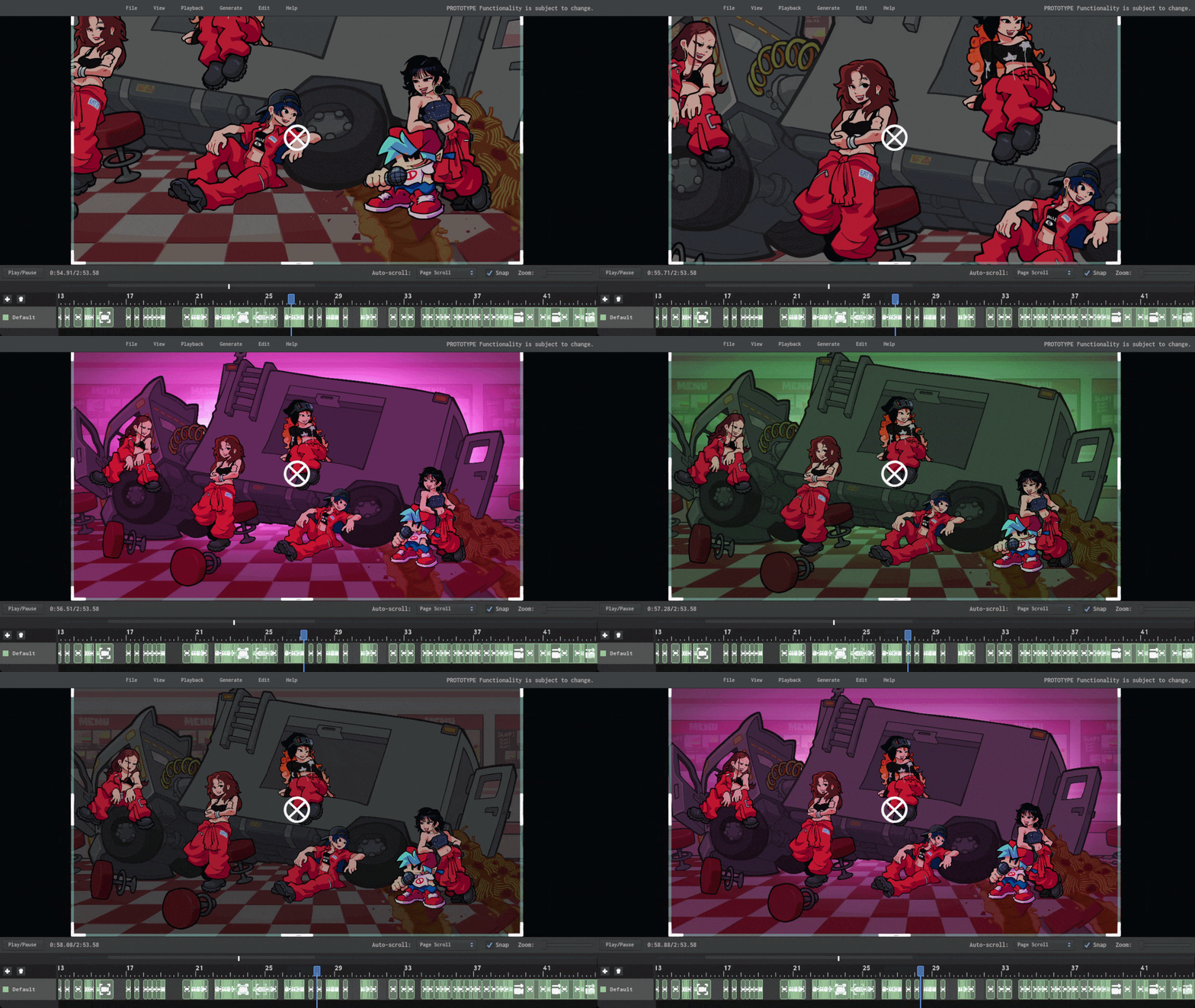
Here’s a sneak peek at support for more event types, which Kade is preparing for a future test build:
And here’s the SiIvaGunner rip I used in my example chart for this post. It’s a good one!
Have fun!
Hundrec 💯